> ## Documentation Index
> Fetch the complete documentation index at: https://docs.simplus.id/llms.txt
> Use this file to discover all available pages before exploring further.
# Menghubungkan printer melalui USB
> Panduan menghubungkan printer thermal ke Simplus melalui kabel USB di Windows, MacOS, dan Android.
Sambungkan printer thermal ke Simplus menggunakan kabel USB, lalu atur printer dari my.simplus.id atau aplikasi Simplus.
Sebelum melanjutkan, baca [Persiapan printer](/perangkat/printer/persiapan) untuk memastikan printer Anda didukung.
## Instalasi driver
Untuk Windows, Anda perlu menginstal driver kustom menggunakan [Zadig](https://zadig.akeo.ie).
Unduh Zadig dari [zadig.akeo.ie](https://zadig.akeo.ie).
Buka aplikasi Zadig yang sudah diunduh.
Pilih **Options** → **List All Devices**.
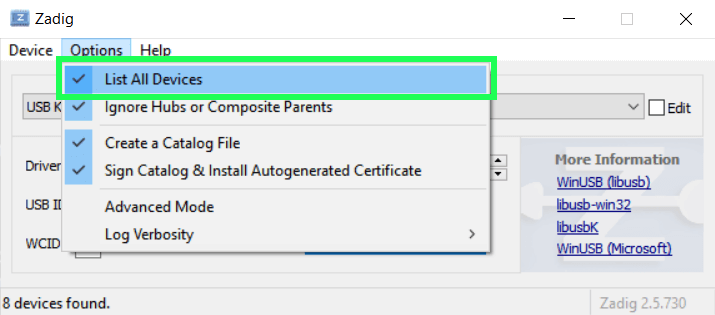 Cari dan pilih printer Anda dari daftar device.
Pastikan driver target adalah **WinUSB**, lalu klik **Replace Driver**.
Cari dan pilih printer Anda dari daftar device.
Pastikan driver target adalah **WinUSB**, lalu klik **Replace Driver**.
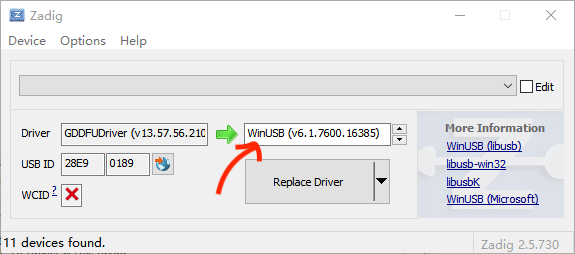 Setelah driver terpasang, lanjut ke [Atur printer di dashboard web](#atur-printer-di-dashboard-web).
Jika test print tidak berhasil, silakan hubungi support kami.
Untuk MacOS, tidak ada driver khusus yang perlu diinstal. Cukup sambungkan printer melalui USB, lalu lanjut ke [Atur printer di dashboard web](#atur-printer-di-dashboard-web).
Tidak ada driver khusus yang perlu diinstal. Sambungkan printer melalui kabel **USB OTG**, lalu ikuti langkah [Atur printer di aplikasi Simplus](/perangkat/printer/atur-di-aplikasi). Printer akan muncul otomatis di **Printer Tersedia**.
Koneksi printer via USB belum didukung di iOS. Silakan gunakan [koneksi Bluetooth](/perangkat/printer/bluetooth).
## Atur printer di dashboard web
Setelah printer tersambung via USB di Windows atau MacOS, hubungkan dan lakukan test print dari [my.simplus.id](https://my.simplus.id).
Gunakan **Google Chrome** atau **Microsoft Edge**. Safari belum didukung.
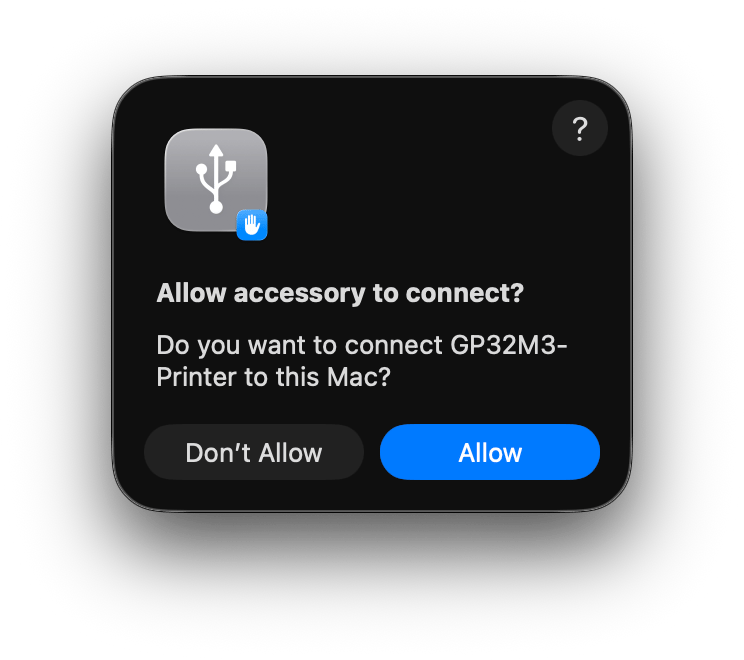
Saat printer pertama kali disambungkan, MacOS akan menampilkan dialog **Allow accessory to connect?**. Klik **Allow**.
Setelah driver terpasang, lanjut ke [Atur printer di dashboard web](#atur-printer-di-dashboard-web).
Jika test print tidak berhasil, silakan hubungi support kami.
Untuk MacOS, tidak ada driver khusus yang perlu diinstal. Cukup sambungkan printer melalui USB, lalu lanjut ke [Atur printer di dashboard web](#atur-printer-di-dashboard-web).
Tidak ada driver khusus yang perlu diinstal. Sambungkan printer melalui kabel **USB OTG**, lalu ikuti langkah [Atur printer di aplikasi Simplus](/perangkat/printer/atur-di-aplikasi). Printer akan muncul otomatis di **Printer Tersedia**.
Koneksi printer via USB belum didukung di iOS. Silakan gunakan [koneksi Bluetooth](/perangkat/printer/bluetooth).
## Atur printer di dashboard web
Setelah printer tersambung via USB di Windows atau MacOS, hubungkan dan lakukan test print dari [my.simplus.id](https://my.simplus.id).
Gunakan **Google Chrome** atau **Microsoft Edge**. Safari belum didukung.
Saat printer pertama kali disambungkan, MacOS akan menampilkan dialog **Allow accessory to connect?**. Klik **Allow**.
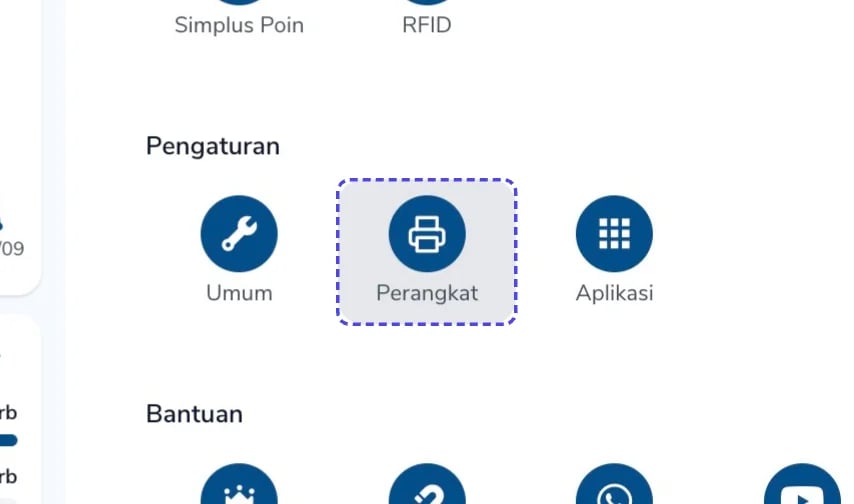
 Di dashboard my.simplus.id, pada bagian **Pengaturan**, klik **Perangkat**.
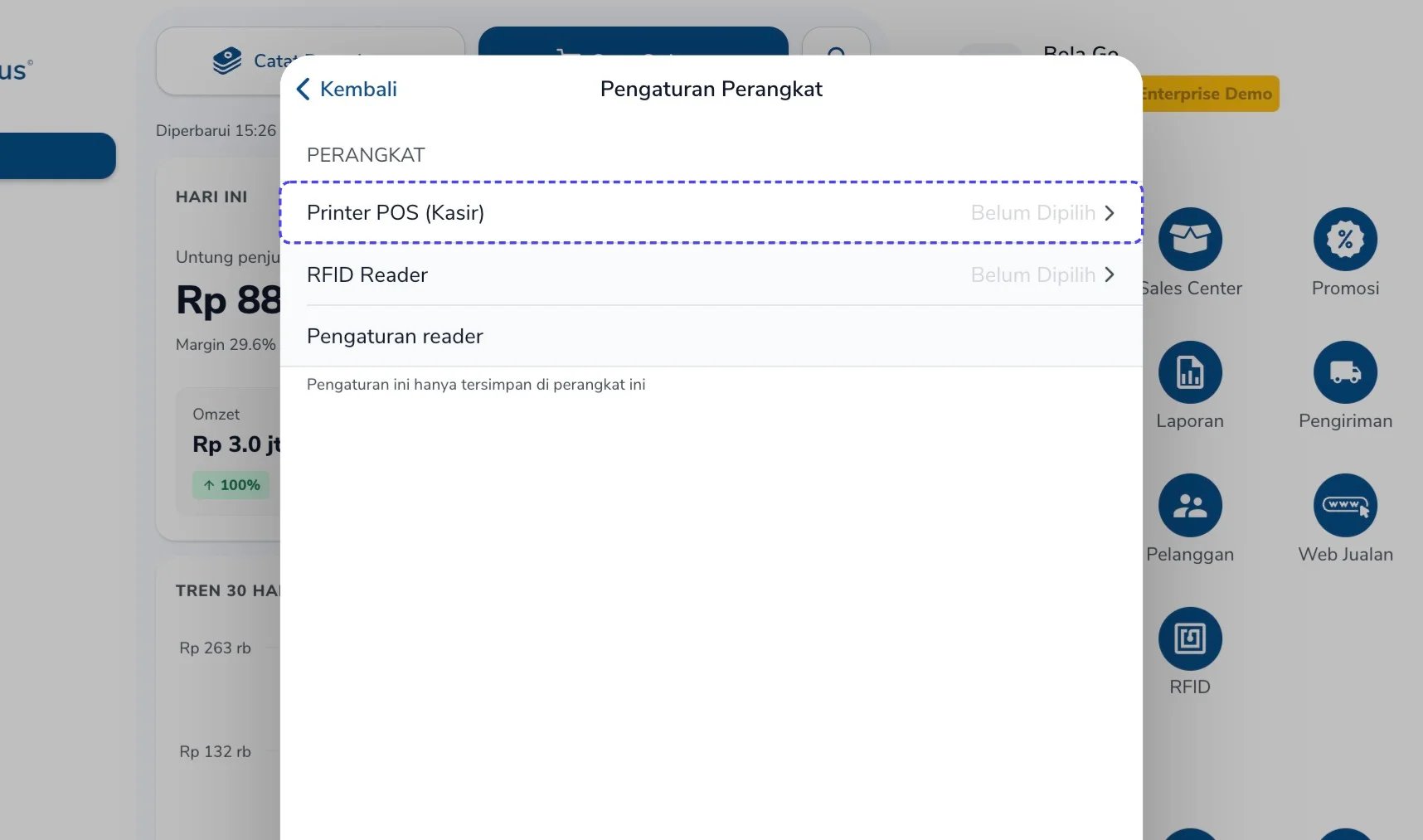
 Pada panel **Pengaturan Perangkat**, klik **Printer POS (Kasir)**.
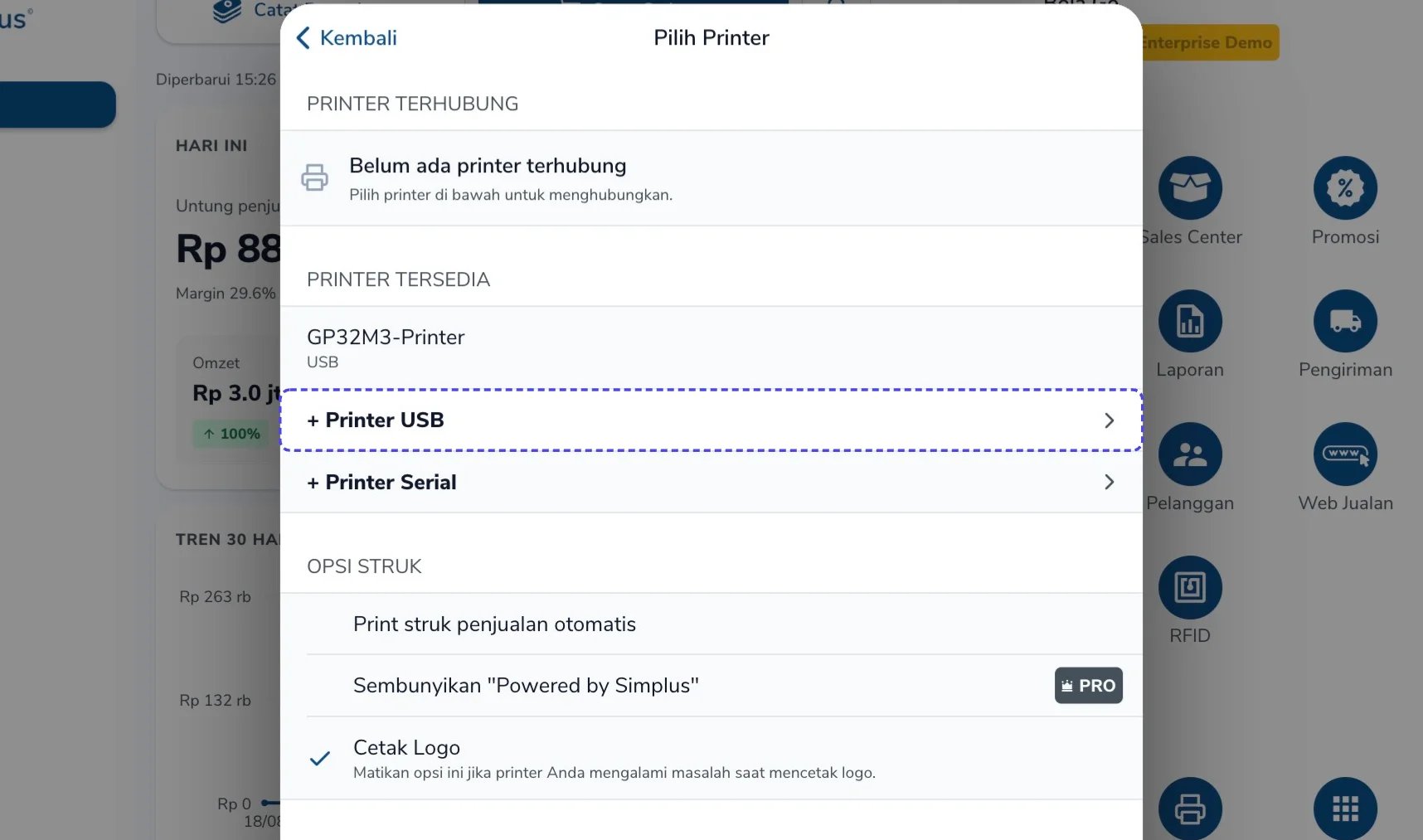
 Pada bagian **Daftar Printer**, klik **+ Printer USB**.
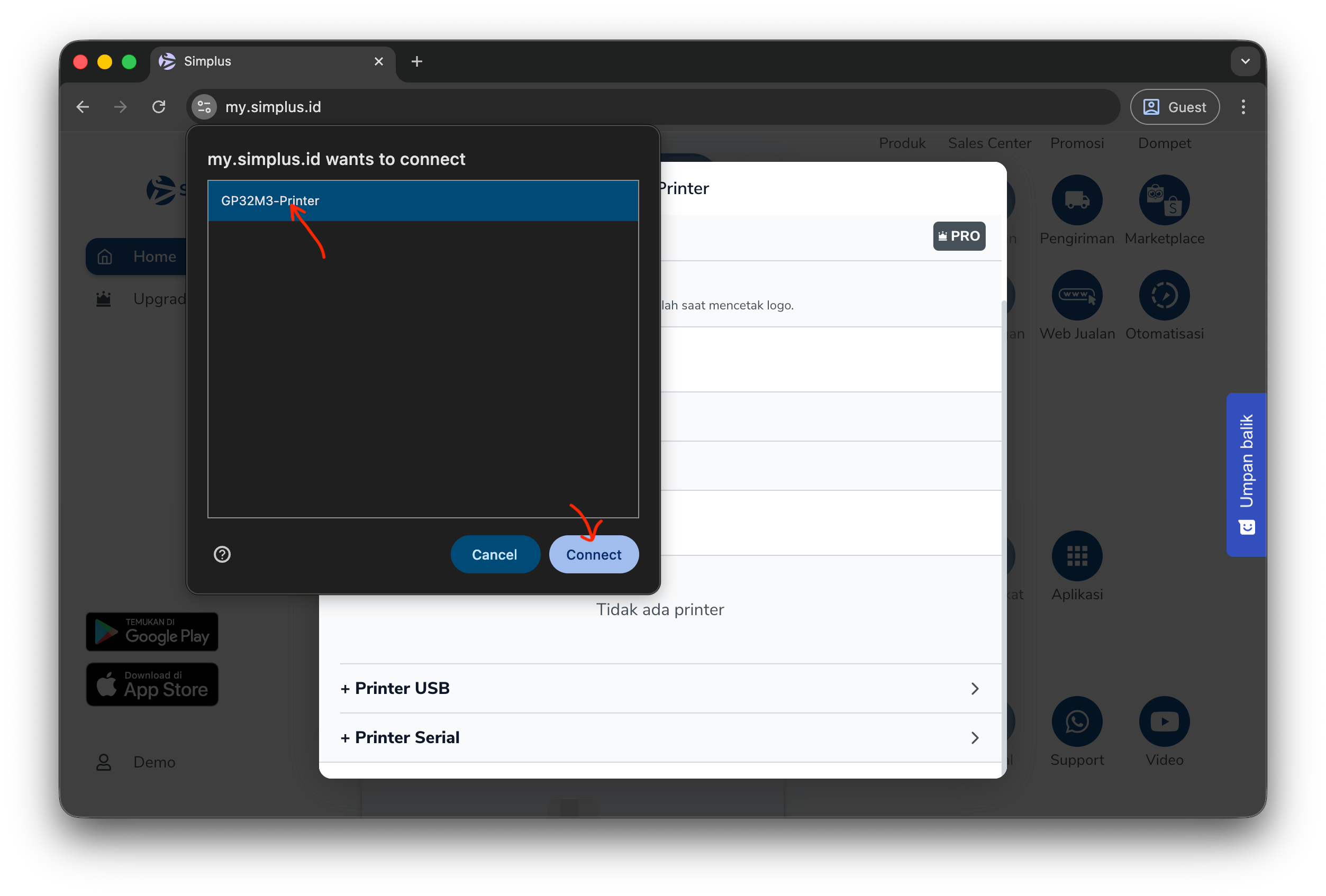
 Browser akan menampilkan dialog **my.simplus.id wants to connect**. Pilih printer Anda, lalu klik **Connect**.
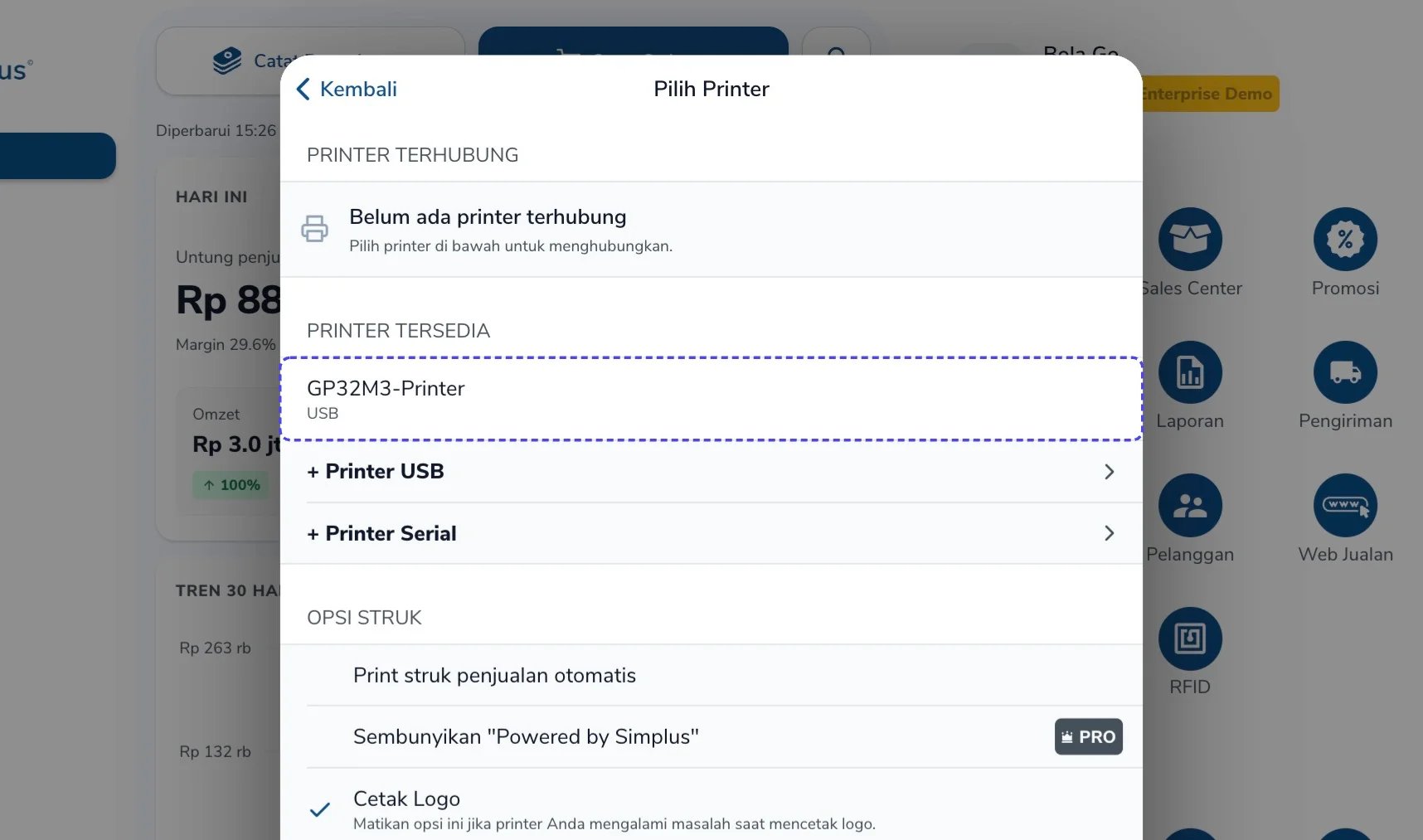
 Printer akan muncul di bagian **Printer Tersedia**. Klik printer tersebut.
 Pada **Ukuran Kertas**, pilih ukuran yang sesuai dengan gulungan kertas di printer Anda (misalnya **58mm**).
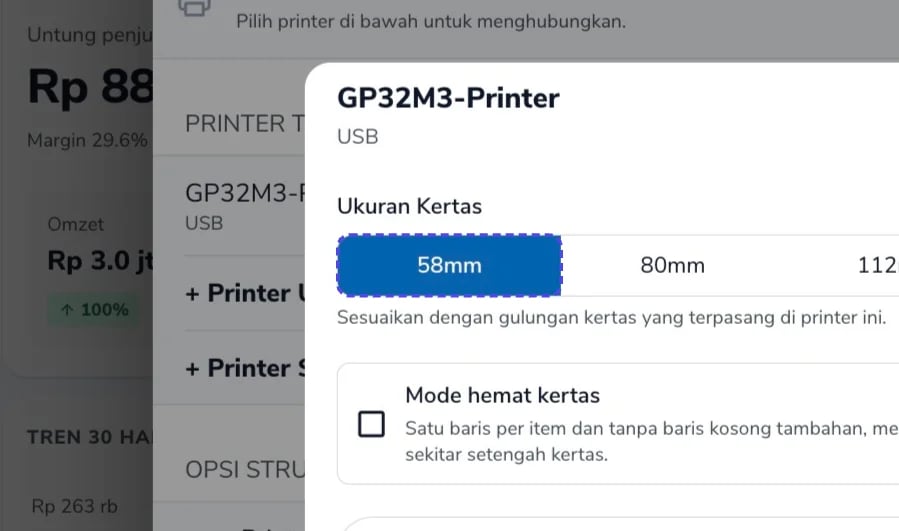 Centang **Mode hemat kertas** jika Anda ingin struk dicetak satu baris per item tanpa baris kosong tambahan, sehingga memakai sekitar setengah kertas.
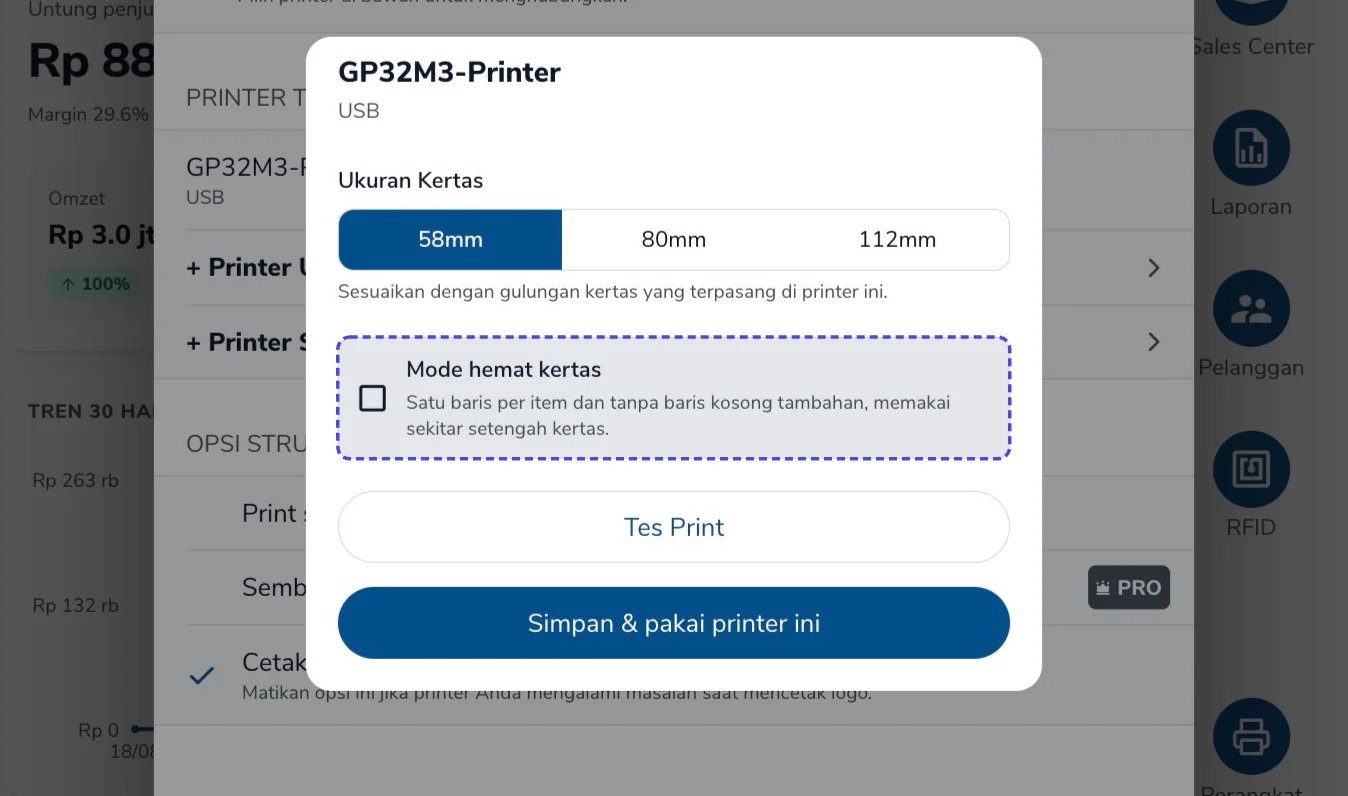 Klik **Tes Print** untuk memastikan hasil cetak terlihat jelas. Setelah itu, klik **Simpan & pakai printer ini**.
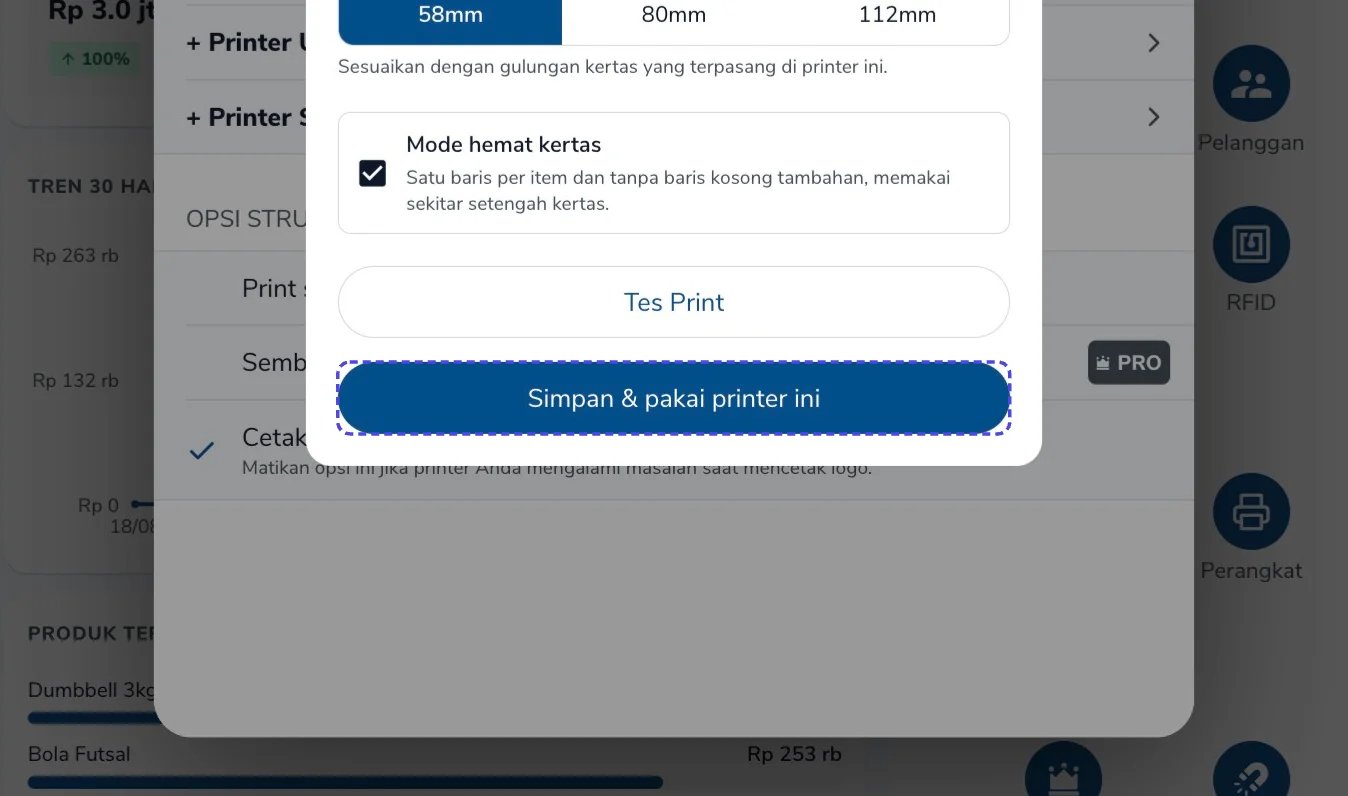 Printer siap digunakan.